

Ever glanced at your iPhone and been greeted by the dreaded “SOS Only” message? It’s like your phone decided to go on a little vacation from the network. While it might feel like your device is playing a cruel joke, this pesky message can signal a few important issues.
Understanding SOS Only on Your iPhone
The “SOS Only” message signifies that an iPhone is unable to connect to the cellular network. Users may see this message due to various reasons such as network coverage issues, SIM card problems, or software glitches.
When a device displays “SOS Only,” it can still make emergency calls. This feature allows users to contact emergency services even without a standard network connection. Understanding the underlying causes can help in troubleshooting the issue effectively.
Some common reasons for this status include:
- Weak Signal: A poor cellular signal can result from being in a remote area or a location with physical obstructions.
- SIM Card Issues: A misaligned or damaged SIM card can disrupt the connection to the network; reseating or replacing the card often resolves this.
- Network Settings: Changes to network settings or an outdated carrier settings update may lead to connectivity issues. Resetting these settings can restore service.
- Airplane Mode: If Airplane Mode is enabled, it will prevent the iPhone from connecting to any network.
- Software Updates: Running outdated software may lead to various connectivity problems. Ensuring the iPhone operates on the latest version often fixes these glitches.
Taking these factors into account, users can systematically determine the root cause of the “SOS Only” message on their iPhones and take appropriate actions to resolve it.
Common Causes of SOS Only Status
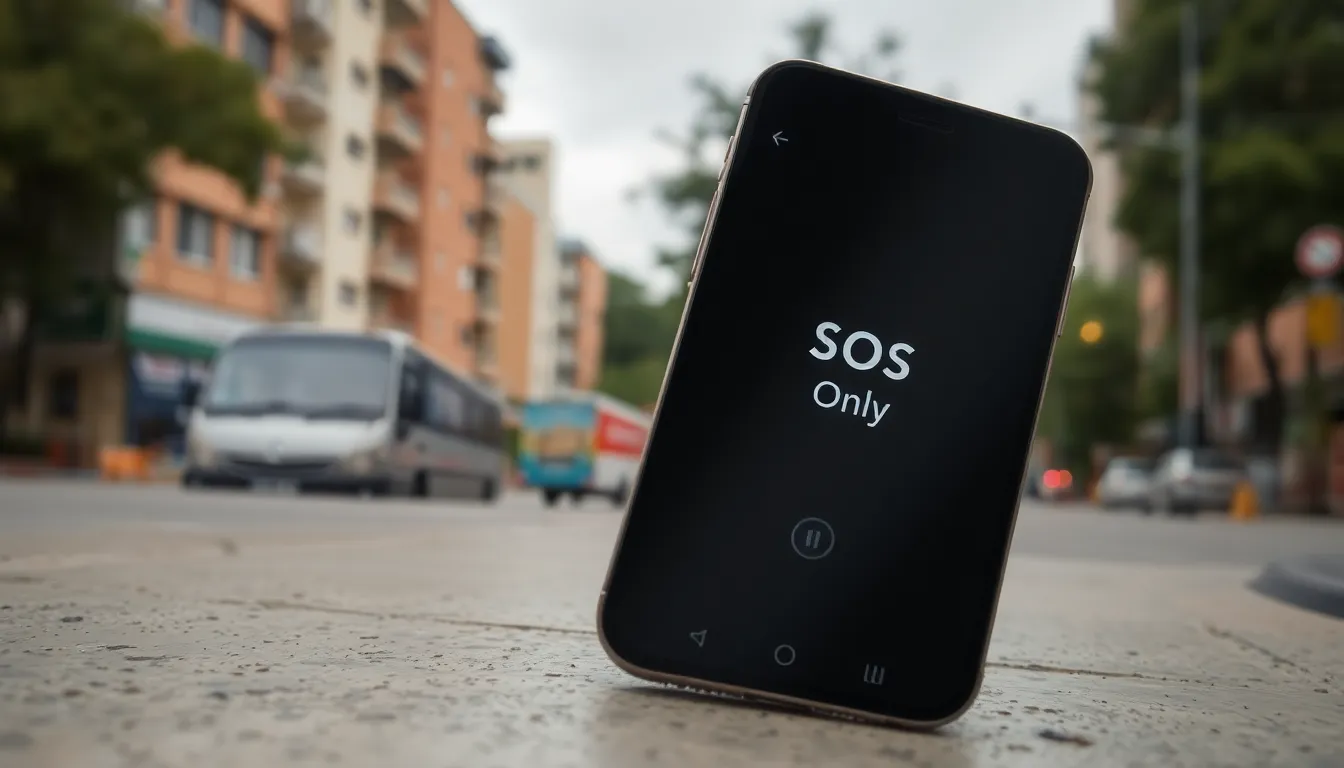
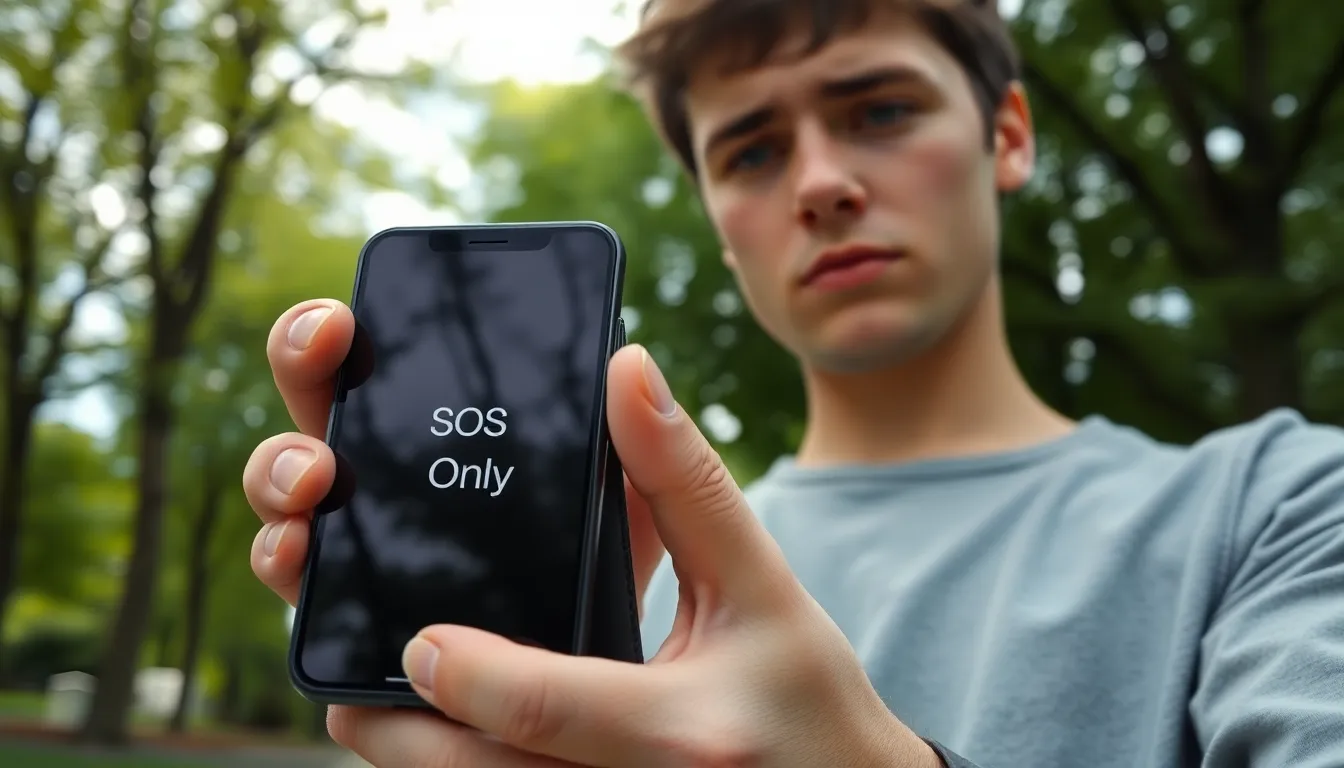
Understanding the reason for the “SOS Only” status on an iPhone helps in addressing connectivity concerns. Several factors can contribute to this issue.
Network Issues
Weak cellular signals significantly contribute to the “SOS Only” status. Areas with poor reception may block the device from connecting to the cellular network. Network outages can also occur due to maintenance or local incidents, causing temporary connectivity loss. Additionally, nearby obstructions, like buildings or trees, can further weaken the signal. Users may notice that moving to a different location occasionally restores network access. Frequent disruptions may indicate a need to consult the cellular provider regarding service stability.
SIM Card Problems
SIM card issues often trigger the “SOS Only” message. A misaligned or damaged SIM card can prevent the phone from receiving signals. Users should ensure the card is seated properly within the tray. Malfunctioning SIM cards can require replacement if they cannot connect to the network. Additionally, compatibility issues arise when using non-activated or unsupported SIM cards, leading to connectivity problems. Checking for any visible damage on the card is essential. If necessary, visiting a carrier or store can provide assistance in resolving SIM card-related issues.
Troubleshooting SOS Only on Your iPhone
When facing the “SOS Only” message on an iPhone, several troubleshooting steps may help restore connectivity.
Restart Your iPhone
A simple restart often resolves various connectivity issues. Power off the device, wait 30 seconds, and then power it back on. This process can refresh the network connection and clear minor software glitches. If the problem persists after restarting, consider trying additional methods to address the SOS status.
Check Your SIM Card
Inspecting the SIM card is essential when encountering “SOS Only.” Users should ensure the SIM card is fully seated in its tray, as misalignment can cause connectivity problems. Viewing for any visible damage also plays a crucial role in diagnosing the issue. If signs of damage are present, replacing the SIM card may be necessary to restore cellular service.
Update iOS
Keeping the iOS updated helps maintain device functionality. Navigating to Settings, users can access General, then Software Update to check for available updates. If an update is present, downloading and installing the latest version could resolve compatibility issues with cellular networks. Regularly updating the operating system ensures the iPhone benefits from the latest features and improvements.
When to Contact Your Carrier
Contacting your carrier becomes necessary when troubleshooting doesn’t resolve the “SOS Only” issue. If users notice persistent connectivity problems after trying the basic troubleshooting steps, reaching out for professional assistance is advisable. Network outages may occur in certain areas, leading to temporary disruptions that affect service availability.
Seek carrier support if the SIM card appears functional and properly seated but issues remain. It could indicate a problem with the device settings or the carrier’s network. Users should verify their account status too; suspended or inactive accounts can lead to “SOS Only” messages.
Many carriers offer dedicated support resources, including online chat, phone support, or in-store consultations. Be prepared to provide device information as well as any error messages displayed, as this can expedite the troubleshooting process.
Consider checking for any alerts from the carrier regarding outages or maintenance in specific regions. Sometimes, network upgrades can lead to temporary service interruptions. If an account issue or network problem is confirmed, the carrier can provide guidance on resolution steps.
Exploring carrier options helps reconnect to the network efficiently. When users can’t identify the source of their issues, carriers often have access to tools that can diagnose and resolve problems remotely.